

Something extraordinary is unfolding
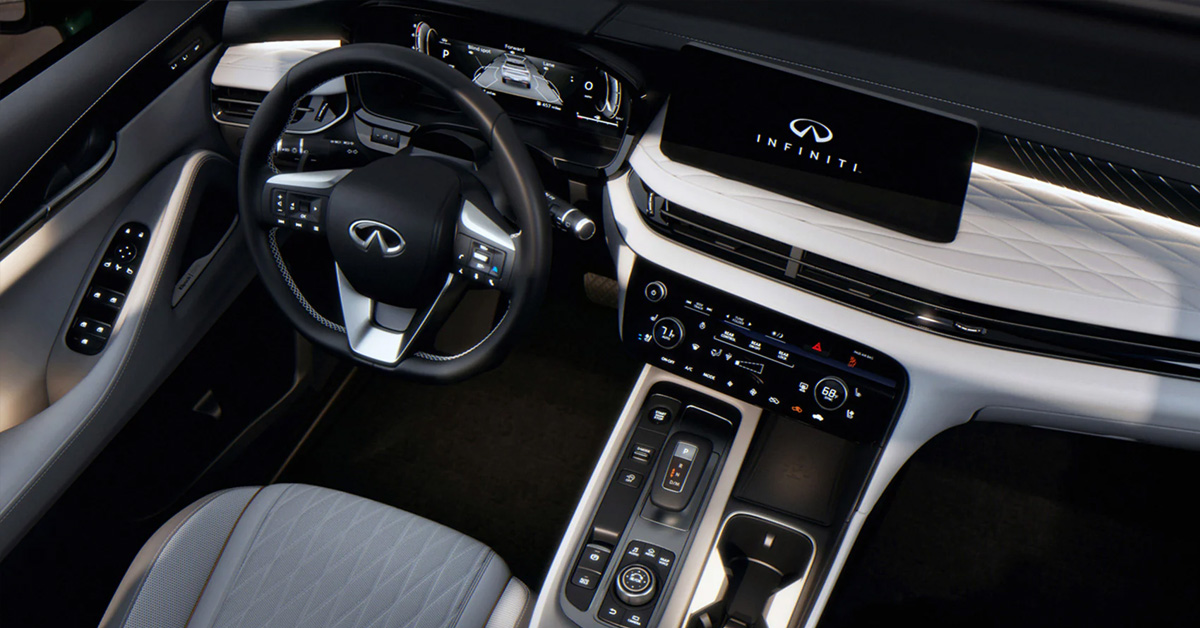
Updating your INFINITI’s InTouch software in 2026 is simple and accessible for drivers, whether using automatic over-the-air updates or performing a manual check through the system menu. By connecting your vehicle to WiFi and following a few guided prompts, you can keep your QX60, QX80, and other INFINITI models running their best with the latest firmware, maps, and in-vehicle apps. Staying current ensures smoother performance, improved navigation, and a more connected driving experience.
Infiniti of Ontario is committed to helping drivers enjoy every mile with dependable support for sales, service, parts, and technology questions. Our team is ready to assist if you ever need guidance with your InTouch system or any aspect of vehicle ownership. Contact us or visit today to experience dedicated care from a dealership that puts your needs first.
What Steps Should You Follow When Your INFINITI Receives an Automatic Update Prompt?
Automatic updates are one of the easiest ways to keep your system current, especially if your vehicle is already connected to WiFi. When an over-the-air update becomes available, your INFINITI will let you know with a clear notification on the center display. For many drivers, especially QX60 owners, these prompts are a reassuring reminder that the vehicle is working quietly in the background to stay up to date.
Recognizing the update notification
The prompt usually appears shortly after the system detects new software. You might see it when you start your engine in the morning or in the evening when you pull into the driveway. The message is simple and usually includes two choices: start now or postpone. Drivers often appreciate this because it feels similar to receiving an update alert on a phone or tablet. You are still in control of the timing, and nothing happens without your approval.
Steps to follow when the prompt appears
Once the message appears, the process is straightforward. Most drivers complete it in a few seconds. Here are the typical steps:
- Review the notification so you know an update is available.
- Select yes if you want the installation to begin immediately.
- If you prefer to wait, choose the option to install later.
- If you choose to install now, keep the vehicle parked and allow the system to complete the process.
On newer models such as the QX60, there may be an additional option that appears after you turn the vehicle off. This lets the update finish in the background while you go inside, so you do not have to wait in the cabin.
Why it helps to approve updates promptly
Automatic updates typically include small refinements that improve day-to-day use. When these roll out, installing them promptly can help you enjoy:
- Smoother menu transitions
- More accurate navigation behavior
- Stronger wireless connectivity
- Reduced instances of slow loading or temporary screen freezes
These improvements happen quietly, but they make a noticeable difference for anyone who relies on their system throughout the week.
Let the system work for you
Think of these prompts as routine maintenance for your technology. Just as you would accept updates on your home devices, letting your INFINITI install them keeps everything running efficiently. The best part is that the system handles the technical details so you can simply confirm the update and carry on with your day.
Need help with an update prompt?
If a notification appears and you are not sure how to respond, Infiniti of Ontario is ready to assist. Our team can walk you through what is on your screen, explain the update, or take a quick look at your system to confirm everything is functioning correctly.
How Do Over-the-Air Updates Work on INFINITI Models Like the QX60?
Over-the-air updates make it easy for drivers to keep their systems current without connecting to external devices or visiting a dealership for basic software refreshes. The process feels natural because the vehicle handles most of the work behind the scenes. For many owners, especially those driving a QX60, this feature has become one of the most appreciated conveniences in modern automotive technology.
A simple process that works in the background
When your vehicle is connected to a stable WiFi network, it quietly checks for new software. If you often park within range of your home’s internet, the system may discover updates as soon as they are released. Many drivers refer to this setup as the QX60 software update WiFi method because it allows the SUV to manage its technology much like a smartphone or tablet.
Once an update becomes available, you will typically see a notification on the center screen. From there, installation is straightforward. Here is what you can expect:
- Your vehicle verifies the update and downloads the files using WiFi.
- A prompt appears to let you know installation is ready.
- You choose whether to start the installation immediately or wait until a more convenient time.
Nothing needs to be plugged in. Nothing needs to be synced. The entire process is designed to fit naturally into everyday use.
Automatic updates designed for real life
One of the most helpful features is the ability for the system to install updates after you turn the engine off. Imagine pulling into the garage after a long day. Instead of interrupting your evening, you simply approve the installation, step out of the vehicle, and let it finish on its own.
The next time you start the QX60, the software is ready to go. This flexibility is a major benefit for families and commuters who do not want to sit and wait during installation. It gives you more control over when updates occur and reduces the chance of missing out on useful improvements.
What these updates typically improve
Over-the-air updates can enhance several parts of your driving experience, including:
- Interface performance, which helps menus load more quickly
- Navigation accuracy, especially in growing or high-traffic areas
- Connection reliability for Bluetooth and wireless features
- Stability for apps and services that rely on the cloud
Drivers often notice that simple everyday tasks, such as pulling up directions or switching between screens, feel smoother after an update.
Support whenever you need it
Although most drivers find the process intuitive, Infiniti of Ontario is always available if a question comes up or if you want someone to look over your system in person. Our team can help you confirm your vehicle is properly connected to WiFi, walk you through the steps, or offer guidance if you are unsure whether an update was installed successfully.
If you prefer professional assistance or simply like the peace of mind that comes with expert support, reach out or visit our dealership. We are here to help you get the most from your INFINITI every day.
How Do You Manually Check for System Updates on Your INFINITI?
While automatic updates handle most of the work, some drivers prefer to take a hands-on approach. Manually checking for new software is a simple way to stay confident that your system is running its latest version. This is especially helpful if you drive often, travel long distances, or rely heavily on features like navigation and smartphone integration. Owners of the QX60, in particular, appreciate having the option to check for system updates whenever it fits their schedule.
Why manual checks can be helpful
Some drivers like the reassurance of confirming updates themselves. Others may have limited WiFi access at home and prefer to perform updates when they reach a location with a stronger connection. Whatever the reason, the manual process is designed to be quick and intuitive. Common situations where a manual check makes sense:
- You suspect an update might be available, but have not received a notification
- A feature feels slower than usual, and you want to rule out pending software updates
- You recently connected to a stronger WiFi network
- You want to verify the system on a QX60 after a long trip or seasonal change
Step-by-step guide to checking for updates
The process requires only a few taps on the touchscreen. It is similar across most late-model INFINITI vehicles, including the QX60. Follow these steps:
- Park your vehicle in a safe and well-ventilated spot.
- Connect to a reliable 2.4 GHz WiFi network.
- Press the Menu button on the center display.
- Select Information from the list.
- Choose System Information.
- Tap Software Update.
- Finally, select Start Software Update and then Check for Updates.
If new software is available, the system will guide you through the download and installation. Once complete, it is recommended to leave the vehicle off for several minutes so everything can settle properly. Drivers who frequently check for system updates on a QX60 often find that small refinements accumulate over time, creating a noticeably smoother and more responsive experience.
What to expect after installation
After a manual update, you may notice:
- Faster screen transitions
- Improved app stability
- More accurate map behavior
- Fewer connection hiccups
Nothing needs to be done on your end besides giving the system a few minutes to complete its internal reset.
How Can You Update Maps and In-Vehicle Apps on Your INFINITI?
Updating your maps and in-vehicle apps is just as important as keeping the main software current. These features support everyday driving, from finding the fastest route to accessing tools that make the cabin feel more personalized and intuitive. Many drivers notice that even small updates can make a QX60 feel more responsive, especially when navigating unfamiliar areas or switching between apps during a busy commute.
Why map and app updates matter
Modern INFINITI models rely heavily on real-time connectivity. Map updates help your system reflect new roads, construction zones, and local changes more accurately. App updates improve stability, fix glitches, and introduce refinements that help the infotainment interface feel polished. These improvements often occur quietly in the background, although they depend on having the right software and a current INFINITI firmware version to support them. Drivers tend to appreciate these updates most when:
- They rely on navigation in growing neighborhoods
- They take regular weekend trips into new areas
- They use apps like the Digital Owner’s Manual or streaming services
- They want the system to react quickly, even during peak travel hours
How to update maps on your INFINITI
On many 2026 models equipped with Google built in, map updates happen automatically through cloud services. This means the system pulls new data as soon as it is available, as long as the vehicle has a stable connection. For drivers who prefer manual updates, the process is simple:
- Park your vehicle where it can connect to a strong WiFi network.
- Open the Menu on the center display.
- Select System Information.
- Tap Map Update.
- Choose Update by WiFi.
- Follow any on-screen prompts until the process completes.
Manual updates can be helpful in situations where the maps feel out of sync, or you want to confirm everything is current before heading out on a long trip.
How to update in-vehicle apps
In-vehicle apps are refreshed through the Google Play Store, which is built directly into the infotainment system on newer models. This lets you update apps the same way you would on a smartphone. Steps include:
- Open the Play Store from the home screen
- Select your profile or the app menu
- Tap Manage apps and device
- Install available updates
These updates often improve performance and help apps load more quickly, especially after larger system updates.
What to expect after updating
After updating maps or apps, drivers often notice improvements such as:
- More accurate traffic and route data
- Faster app loading times
- Improved voice recognition accuracy
- Reduced lag when switching between features
These refinements contribute to a more enjoyable and dependable daily driving experience.
Help with map or app updates
If you ever feel unsure about your current INFINITI firmware version or want help navigating the update menus, Infiniti of Ontario is here to assist. Our team can review your system, confirm that everything is running its most recent version, and help you understand any new features that come with updated maps or apps.
Whether you prefer hands-on guidance or simply want reassurance that everything is working correctly, reach out or visit us. We are always ready to help you make the most of your INFINITI’s technology.
What Should You Do If Your InTouch Update Doesn’t Install Correctly?
Even though the update process is designed to be smooth, there are times when an installation may pause, fail to complete, or leave the system behaving differently than expected. This can happen for simple reasons, such as a weak WiFi signal or the vehicle being turned off too early. Drivers who search for guidance on how to update INFINITI InTouch often do so because they want to troubleshoot these rare situations without unnecessary stress. The good news is that most issues can be resolved quickly with a few practical steps.
1. Start with a simple reset
A soft reboot is often the easiest way to get the system back on track. When the screen feels sluggish or an app refuses to load, this quick reset can clear temporary glitches. Drivers often try this first because it is:
- Fast
- Non-technical
- Effective for small software hiccups
After the reset, go back to the update menu and check whether the installation can continue.
2. Check your WiFi connection
Many incomplete updates happen because the signal disconnects mid-download. If your QX60 is parked at the edge of your home network, the connection may drop without you noticing. Try these steps to strengthen your connection:
- Park closer to your router
- Switch to a 2.4 GHz network if available
- Restart your home WiFi to refresh the signal. Confirm that your network does not require a login screen
Once connected, return to the update menu and attempt the installation again.
3. Verify the update menu
If the system still feels unresponsive, go back to the software update settings. Occasionally, the system may show that the update is partially installed or pending. Look for:
- A prompt asking you to retry A partially downloaded update
- A new update that replaced the previous one
This helps you determine whether the installation failed or simply paused.
4. Try checking for updates again
Manual checks can often resolve odd behavior by prompting the system to restart the process. You can repeat the same steps you would normally use to check for updates, which gives the system another chance to locate and install the correct files. Many QX60 owners find that a fresh attempt completes without any issues.
When to ask for expert help
If the system freezes repeatedly, apps refuse to open, or you receive error messages you have never seen before, it may be time for professional support. Some issues are caused by deeper software conflicts that are best handled by trained technicians. Infiniti of Ontario can:
- Review your system in person
- Confirm whether the update was installed successfully
- Reconnect or refresh the system using factory-level tools
- Help you understand what caused the issue
Our team works with InTouch systems daily, which means we can identify problems quickly and get you back on the road with confidence.
How Often Should You Check for New InTouch Updates on Your INFINITI?
Many drivers wonder how frequently they should look for new software, maps, or app updates. The good news is that the system is designed to take much of the guesswork out of the process. If your vehicle regularly connects to a strong WiFi network, such as at home or work, it can automatically discover new updates through the same method often referred to as the QX60 software update WiFi approach. This allows your QX60 or QX80to stay current without constant attention.
General recommendations for most drivers
While automatic updates handle a large portion of the work, it is still wise to check manually from time to time. A quick manual check ensures you are not missing any refinements, especially if you use your vehicle’s technology heavily. Most drivers find this schedule helpful:
- Once per month for general peace of mind
- Before long road trips that rely on accurate navigation
- After connecting to a better WiFi signal than usual
- Anytime the system feels slower or different than normal
These occasional checks take only a few moments and can help prevent small issues from turning into frustrations.
How do I connect my 2026 QX60 to WiFi to perform an update?
To connect your QX60, park within range of a stable 2.4 GHz WiFi network, then go to Menu → Settings → WiFi or Network Settings on your InTouch screen. Select your network, enter the password if required, and confirm the connection.
Do I need to visit the dealership for an InTouch software update?
No, most updates can be performed at home using WiFi or over-the-air update functionality. Visiting the dealership is only necessary if the update fails, the system freezes, or professional troubleshooting is needed.
How long does an over-the-air software update usually take?
Updates typically take 15 to 30 minutes to download and install, depending on the size of the update and the strength of the WiFi connection.
Can I drive the vehicle while the software is updating?
No, the vehicle should remain parked during the update. For the QX60, you may be able to start the update after turning off the engine, so it completes while parked.
How do I check which software version my QX60 is currently running?
On the InTouch screen, go to Menu → Information → System Information → Software Version. The current firmware version will be displayed there.
Stay Connected & Enjoy All INFINITI Has to Offer at INFINITI of Ontario
Keeping your InTouch system up to date is just one way to ensure your QX60 performs at its best, but there are many other ways to enjoy your vehicle’s features and capabilities. From maintaining the luxurious semi-aniline leather seats to taking advantage of the smart rearview mirror, every detail contributes to a smoother, more comfortable, and more connected drive. A well-maintained and fully updated QX60 also makes the most of its innovative 4-cylinder VC-Turbo engine, delivering efficiency and performance for daily commutes or weekend getaways.
For drivers in Rancho Cucamonga, Chino Hills, and Upland, Infiniti of Ontario is your local resource for everything INFINITI. Whether you want help with technology, want to schedule a service, or are ready to see our wide selection of vehicles, including the QX60, our team is here to guide you every step of the way. Take a closer look at the luxurious leather care tips for your QX60, learn how to maximize your Smart Rearview Mirror, or get the full guide to the QX60’s VC-Turbo engine to make the most of your drive. Contact us or stop by today to see how easy it is to enjoy all the technology, comfort, and performance your INFINITI has to offer.
Get Directions to Infiniti of Ontario
Disclaimer: All information is provided for general informational and entertainment purposes only. While we strive for accuracy, we cannot guarantee that all content is complete, current, or error-free. Any reliance you place on such information is strictly at your own risk. This article may include opinions and is not endorsed by, or officially affiliated with, any vehicle manufacturer or brand. Always consult official sources – such as the vehicle’s owner’s manual, authorized dealerships, or certified professionals – for the most up-to-date and personalized information.
Connect with us


- June 2026
- May 2026
- February 2026
- January 2026
- December 2025
- November 2025
- October 2025
- September 2025
- August 2025
- July 2025
- June 2025
- May 2025
- April 2025
- March 2025
- January 2025
- December 2024
- November 2024
- October 2024
- September 2024
- August 2024
- July 2024
- June 2024
- May 2024
- April 2024
- March 2024
- February 2024
- January 2024